Direct Answer
Apple HomeView brings compatible smart-home accessories together in one place, but a useful setup needs more than connected lights and voice commands. Clear device names, dependable scenes, and tested security settings help prevent everyday problems. An Apple HomeView smart home works best when household members know which controls to use and what to do when an accessory stops responding.

Key Takeaways
- Give accessories clear names and organize them by room.
- Test individual commands before combining them into scenes.
- Use touchscreen controls and Siri AI to check whether devices respond consistently.
- Review camera access, notifications, and household permissions.
- Keep manual alternatives available for important functions such as locks and climate controls.
Build a Clear Control System Before Creating Scenes
Start by organizing accessories in Apple Home. Group compatible lights, thermostats, locks, blinds, cameras, and sensors according to their rooms. Use names that make sense to everyone in the household rather than relying on technical product labels.
For example, distinguish between a living-room lamp and a bedroom lamp instead of naming both simply “Light.” Clear labels make touchscreen navigation and Siri requests easier to understand.
Keep frequently used accessories easy to reach. Security-related controls, such as door locks and cameras, should be distinguishable from everyday convenience features.
Set Up Apple HomeView for Everyday Use
Choose a Practical Location
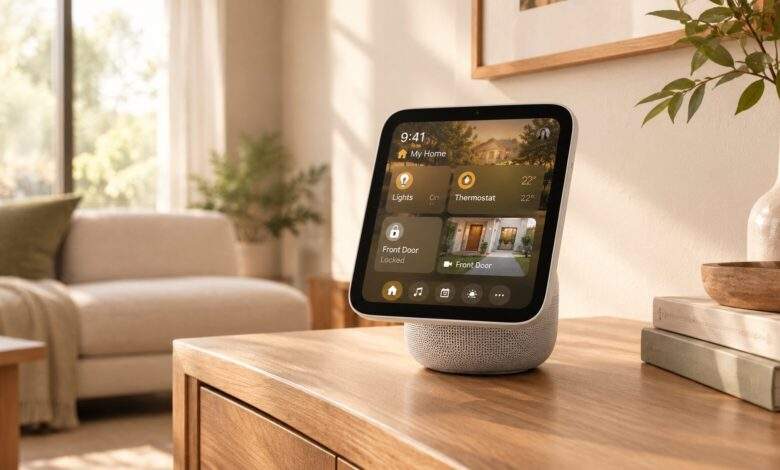
A tabletop model can suit a kitchen or living room where household members regularly check information, adjust lighting, or use timers. A wall-mounted version may work better near an entryway where people need access to locks and cameras.
Choose a position where the display is visible and accessible without obstructing movement.
Check Accessory Compatibility
Add supported products through the Apple Home app. Apple Home and Matter compatibility are important considerations when choosing accessories; having Wi-Fi connectivity or a separate manufacturer app does not guarantee that a product will work with HomeView.
Organize connected devices by room before building scenes. This makes it easier to identify the correct accessory when a command fails.
Configure Household Profiles
HomeView can recognize up to six people and provide personalized home screens with individual apps and widgets. Personal-context requests may require a registered Apple Intelligence-enabled iPhone or iPad on the same home Wi-Fi network, recently unlocked and running supported software and languages.
Check each household member’s access and personal settings rather than assuming everyone should have identical controls.
Test Touchscreen and Siri Commands Separately
Before relying on a scene, confirm that each accessory responds on its own.
Use the touchscreen to switch compatible lights, adjust a thermostat, operate supported locks and blinds, and view available camera feeds. Then try equivalent voice requests through Siri AI.
For example, use a clear command such as “Turn off the living room lights” rather than an ambiguous instruction. The same principle applies to thermostat adjustments, blinds, and supported door locks.
If a command does not work, check the accessory’s connection, room assignment, permissions, and configuration before adding it to a larger automation. Available actions depend on the connected products and Siri’s capabilities.
Create Scenes Only After Individual Controls Work
A scene combines multiple accessory actions, so a problem with one device can make the entire routine less dependable. Test each action separately before grouping them.
A useful testing process is:
- Run every accessory action manually from HomeView.
- Repeat the action using Siri AI and the accessory’s assigned name.
- Combine the actions into a scene.
- Run the complete scene several times.
- Check which accessory responds slowly or fails to respond.
Pay particular attention to actions involving locks, cameras, and temperature settings. Do not assume that every multi-step or security-sensitive voice command will be supported.
Check Camera Access and Security Settings
The Home Camera face can display up to nine compatible camera feeds simultaneously. This provides a convenient way to check several areas of the house, including entrances and rooms where pets spend time.
With compatible cameras and a supported iCloud+ subscription, certain features can provide encrypted recognition of people, familiar faces, pets, packages, and vehicles. Availability depends on camera compatibility and account settings.
Review camera notifications, recording options, subscriptions, and household permissions. Also decide who can access security feeds and which devices are allowed to control locks. Keep a manual alternative available for important security functions.
Make the Display Useful to Different Household Members
Apple HomeView smart home supports several display faces and widgets, so each person can choose the information they want to see.
- Photos: Displays images from a selected shared album, with Portrait-style depth effects.
- Flow: Shows interactive artwork that responds to physical presence and movement.
- Snoopy: Presents animations related to the time, weather, and occasions.
- Home Modular: Makes favorite smart-home accessories easier to access.
Widgets can also surface information from apps such as Calendar, Messages, and Reminders. Personalized screens help separate individual information while allowing household members to share selected photos and music.
Troubleshoot Common HomeView Problems
A connected device may still become unavailable because of a power interruption, network problem, or accessory issue. When something stops responding, check the simplest causes first.
- An accessory does not respond: Check its power and connection, then confirm that it remains available in Apple Home.
- Siri controls the wrong device: Review the accessory’s name and room assignment.
- A scene only partly works: Test each action separately to identify the device causing the problem.
- A camera feed is unavailable: Check camera compatibility, network access, and recording settings.
- A household member cannot use a personal feature: Review device registration, software, language, and network requirements.
A short troubleshooting routine can make problems easier to identify without rebuilding the entire smart-home setup.
Is Apple HomeView Private?
Apple says Siri requests can be processed on the device or through Private Cloud Compute, where request data is not stored or made accessible to Apple or others. Some compatible camera-recognition features use end-to-end encryption.
HomeView also provides personalized experiences for recognized household members. However, privacy depends on more than the display itself. Review account access, connected accessories, camera permissions, and the information shared among household members.
For the official feature list, compatibility details, and availability information, see Apple’s HomeView announcement in the Apple Newsroom.
Frequently Asked Questions
Can HomeView work with smart-home products from other brands?
Yes, when the products support Apple Home or Matter. Check the exact model and any required bridge before purchasing.
How many people can use HomeView?
It can recognize up to six people and provide personalized home screens. Some personal-context features require a compatible registered iPhone or iPad.
How many camera feeds can it display?
The Home Camera face can show up to nine compatible video feeds at once.
Can Siri AI control connected accessories?
Siri AI can handle supported smart-home requests. Available commands depend on the accessory, configuration, and permissions.
When does Apple HomeView become available?
Apple announced HomeView in October 2026, with availability scheduled to begin November 13. Regional availability may vary.
The Bottom Line
A dependable Apple HomeView smart home is built around clear controls, compatible accessories, and routines that have been tested under ordinary conditions. Organize devices by room, verify individual commands, and check security permissions before relying on scenes. These steps help make the display a practical household control point rather than just another connected screen.
Also worth checking out:
- How to Use 3D Graphs in Apple Math Notes and Organize Your Notes
- How to Use Apple’s Live Rewind Audio Intelligence?
- How Do You Smoothly Switch to a New iPhone 18?
- Related reading on techstormy.com: How smart plugs work in a connected home; Connected heating technology for the home.