Direct Answer
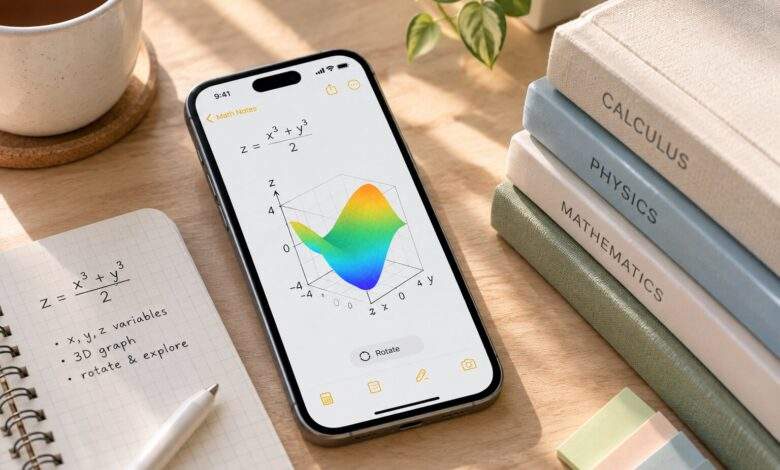
Apple Math Notes 3D graphs can help you see how an equation behaves beyond the numbers on the page. You can plot a function, turn the surface to view it from different angles, and keep your observations with the original equation. The Calculator app is where you work with Math Notes; the Notes app helps you file your work so you can find it again later.

Build a Subject-Based Filing System
Create broad folders for subjects such as calculus, physics, engineering, or research, then use subfolders for units and projects. Descriptive titles make the archive easier to scan than generic labels.
Tags add a second layer across folders, letting one project appear under several relevant topics without duplicating the note.
Key Takeaways
- Plot a function: Use Math Notes in Calculator to turn a suitable equation involving (x), (y), and (z) into a 3D surface.
- Look beyond the first view: Rotate the graph to get a better sense of its shape.
- Write down what you notice: Keep your calculations and explanations with the graph.
- Build a filing system: Use folders and tags to group work by class, topic, or project.
- Check exported notes: Review Markdown files before relying on them to preserve graphs or mathematical formatting.
Get a Better Look at Your Equation
A formula can be difficult to picture when you’re seeing it only as symbols. A 3D graph gives you another way to explore the relationship between two input variables and an output.
Open Math Notes
On your iPhone, open Calculator and switch to Math Notes using the calculator-mode control. Start a new math note or open an existing one.
Enter the equation
Type or write an equation with (z) on the left and (x) and (y) on the right. Use a function you are studying in class, or start with a simple example to get familiar with the graphing tools.
Add the graph
Look for the Insert 3D Graph option associated with the equation and follow any prompts to assign the variables to the axes. The graph should appear with your mathematical work, giving you a visual reference for the expression.
Turn the surface and inspect it
Drag the graph to view it from different angles. One view may hide a feature that becomes easier to see when you rotate the surface. If you want to compare functions, check which graphing options are available in your version of Math Notes.
The exact controls and availability can vary by device and software version. If an option is missing, check Apple’s current instructions for your device.
Make Each Graph Worth Coming Back To
A graph is much more useful when you remember why you made it. Instead of saving an equation and moving on, add a few lines about what you were trying to understand.
For example, a note comparing two functions might include:
- The question: What changes when a term or coefficient changes?
- The equations: Which functions did you compare?
- Your observations: What differences did you notice when viewing the surfaces?
- Your explanation: How do those differences relate to the equations?
You don’t need to write a full report every time. Even a short observation can save you from having to repeat the same work before an exam or when you return to a project.
Set Up Apple Notes Around the Way You Study
The best filing system is one you can maintain without thinking too hard about it. Start with a few broad categories and add detail only when you need it.
Keep subjects separate
Create folders for classes or areas of work, such as Calculus, Physics, and Engineering. Within a subject, use subfolders for topics or assignments if they help you find things faster.
For example, your Calculus folder might contain material on derivatives, integrals, and 3D functions. If a folder structure starts becoming difficult to navigate, simplify it rather than adding another layer.
Use tags when topics overlap
Some notes belong in more than one category. A graph might be relevant to both calculus and a research project, for example.
Tags such as #calculus, #3Dgraphs, and #research can help connect related notes across folders. Choose labels you are likely to use consistently; a long list of slightly different tags can make searching harder.
Let Smart Folders do some of the sorting
Smart Folders collect notes that match the filters you choose. They can be handy when you want a single view of notes carrying a particular tag, without moving those notes out of their existing folders.
The available setup options may differ by software version, so check the controls shown in your Notes app.
Name notes so you can recognize them
Titles such as “Comparing Two Surfaces” or “Physics: Function Model” give you more information than “Untitled” or “Math Practice.” Include the topic, assignment, or question when it helps distinguish one note from another.
What to Do With Finished Work
When a class or project ends, don’t leave every note mixed in with the work you still use regularly. Move completed material into an archive folder organized by semester, year, or project.
Keep useful reference material easy to reach, and archive one-off exercises that you may need later but rarely open. This keeps your active folders manageable without forcing you to delete work that could prove useful again.
If you share notes with another app or use them in a writing workflow, Apple Notes offers a Markdown export option. Open the note, use the Share menu, and look for Export as Markdown. Follow the available prompts to save or send the file.
Before discarding the original, open the exported file and check what made it across. Equations, images, formatting, and interactive graph features may not all behave the same way in another application. Keep the original Math Notes work if you need its interactive features.
Frequently Asked Questions
Can I use Apple Math Notes to make 3D graphs?
Yes. Math Notes supports 3D graphing for suitable equations that define (z) using (x) and (y). You can rotate an inserted graph to inspect the surface.
Where do I find Math Notes on an iPhone?
Open the Calculator app and select Math Notes from the calculator-mode controls. The Notes app serves a different purpose: it helps you organize your written material and saved notes.
What’s a simple way to organize math notes?
Start with a folder for each subject, use descriptive titles, and add tags when a note relates to several topics. Smart Folders can help gather notes that match selected filters.
Can I export a 3D graph to Markdown?
Apple Notes offers Markdown export, but don’t assume an interactive 3D graph will remain functional in the exported file. Open the export and check the content you need before relying on it.
What if I can’t find the 3D graphing option?
Feature availability and controls can depend on the device and software version. Consult Apple’s current documentation to confirm whether your setup supports the feature.
A Folder Plan for Students and Technical Projects
Separate ongoing classes from time-limited projects. Subject folders can hold permanent reference notes, while project folders can contain calculations, decisions, and final explanations.
Archive completed work by term or year instead of leaving every file in an active folder. The smaller active view makes the next note easier to find.
The Bottom Line
Apple Math Notes 3D graphs let you explore equations visually, but the work becomes easier to use when you record what you learned alongside each graph. Give your notes clear titles, group them in a filing system that makes sense to you, and check exported files before relying on them elsewhere.
You might also like:
- Mastering Apple Notes AI Features
- Using Apple’s Live Rewind Audio Intelligence
- Related reading: A smarter Apple Notes workspace; How to organize a new iPhone setup.