Direct Answer
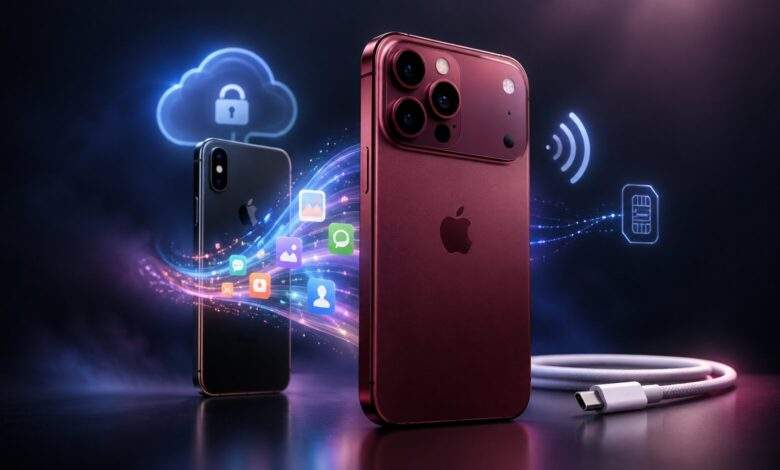
When you switch to a new iPhone 18, backing up your previous device, verifying Apple account credentials, using Quick Start or a full backup, transferring your eSIM, verifying app access, and securing settings ensures a smooth transition.
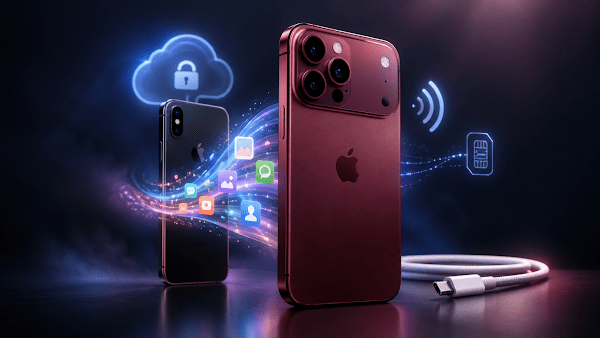
A secure hardware transition goes beyond transferring media files. Protecting your Apple ID access, digital passkeys, mobile banking profiles, and cellular connection ensures your overall digital identity remains safe.
Why Preparation Matters Before the Transfer
When people switch to a new iPhone 18, the most critical phase occurs long before reaching the final setup screens. Unprepared transfers frequently leave users missing text histories, health records, two-factor authenticator tokens, digital wallet passes, or carrier connections.
Before starting, update your active iPhone, charge both devices, check available iCloud space, and confirm your current Apple ID login details. If using a desktop computer for local storage, create an encrypted backup so sensitive Wi-Fi keys, Health metrics, and saved credentials carry over seamlessly.
Key Takeaways
-
Prioritize Backups: Generate a fresh backup on your existing iPhone before you switch to a new iPhone 18.
-
Leverage Quick Start: Use Apple’s direct Quick Start workflow when both devices are on hand.
-
Verify Credentials: Confirm device passcodes, Apple account details, and 2FA keys beforehand.
-
Coordinate Cellular Setup: Manage your eSIM activation carefully before disconnecting your old line.
-
Audit Core Content: Double-check photos, messages, contacts, wallet cards, and login tools on the new phone.
-
Delay Resetting: Keep your legacy iPhone intact until all apps and settings are thoroughly verified.
How to Switch to a New iPhone 18 Step by Step
1. Generate a Complete Backup
Prior to setting up your new iPhone 18, execute a fresh iCloud backup or an encrypted local desktop backup. Review your iCloud configuration settings to verify that Photos, Messages, Contacts, Notes, and app data sync cleanly.
2. Execute Quick Start or Cloud Restore
Apple Quick Start is the standard migration option because it links both devices directly, transfers preferences, and guides you through data transfer choices. If your old iPhone is broken or unavailable, restoring from a recent iCloud or encrypted desktop backup is the best secondary path.
3. Manage eSIM and Carrier Migration
Setting up cellular connectivity requires careful attention during an upgrade. Verify if your network provider supports wireless eSIM Quick Transfer, and avoid wiping your old device until text messages, phone calls, and cellular data operate correctly on the new hardware.
Financial tools, password managers, multi-factor authenticators, enterprise apps, and health monitoring services often require manual sign-in or secondary approval. Launch each app while your old phone is active to resolve login prompts quickly.
5. Secure Your New Device
Once data transfer completes, configure Face ID, passcode rules, Find My location services, Stolen Device Protection, app privacy controls, payment cards, and notification parameters. This secures your new hardware for daily reliance.
Post-Setup Checklist
- Confirm recent photo galleries and message threads appear on the new phone.
- Conduct a test phone call and send a test SMS message.
- Open and log into password managers, banking apps, digital wallets, and 2FA tools.
- Verify Bluetooth connections with wireless headphones, smartwatches, and car systems.
- Ensure Find My iPhone is active on the new device.
- Keep the old iPhone available for at least a day before erasing it.
Frequently Asked Questions
Should you factory reset your old iPhone immediately?
No. Keep the old device untouched until your new phone is fully operational, cellular data works, media is visible, and all essential account logins are verified.
Is Quick Start better than restoring from an iCloud backup?
Quick Start is faster and easier when both devices are physically present. An iCloud restore is ideal if the original phone is damaged, lost, or unavailable during setup.
What is the most common mistake when upgrading iPhones?
The biggest mistake is wiping or trading in the previous iPhone before testing cellular service, 2FA authenticator tools, personal photos, and workplace accounts on the new device.
Bottom Line
A successful transition to a new iPhone 18 comes down to thorough initial preparation and methodical post-transfer audits. Managing backups, eSIM activations, app access, and device security prevents minor setup oversights from turning into serious data loss.
Source: Ask Adam. Read the original article.
Related reading on techstormy.com: Tim Cook’s Final Memo: What’s Next for Apple?; AI Search and Security Lead 2026 Technology Growth.